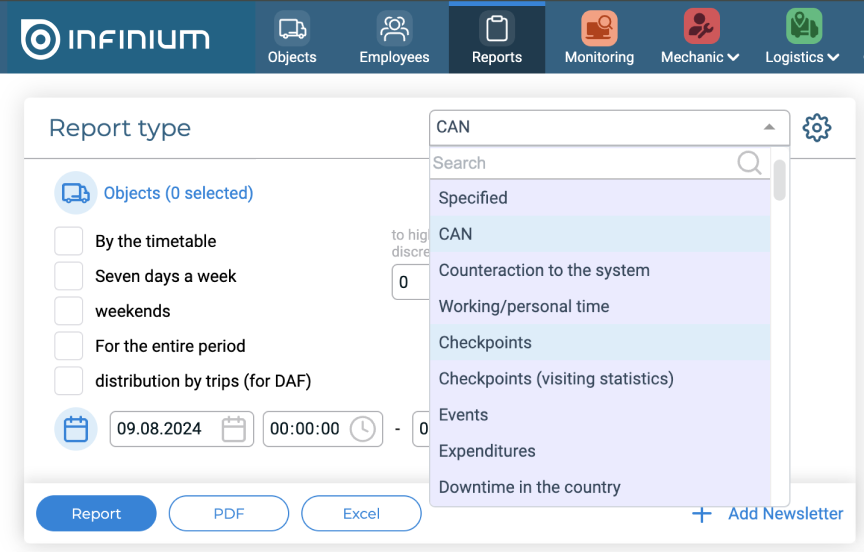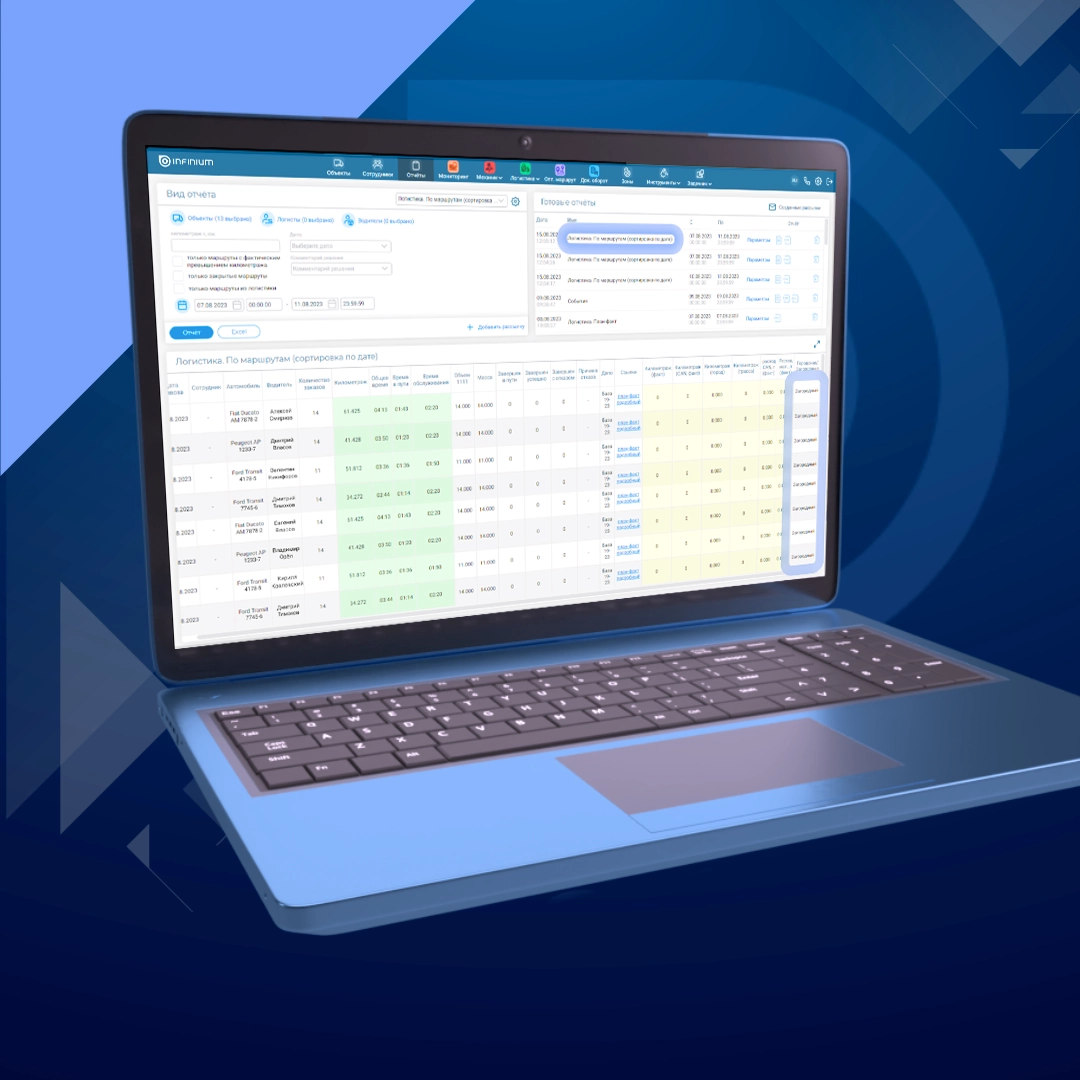


Section “Mechanic”. A grouped report “Drivers” has been created
As we all know, there is a “Drivers” report in the System, which displays information about the mileage, driving time and parking of cars to which drivers have been assigned. The information in this report is grouped by vehicle.
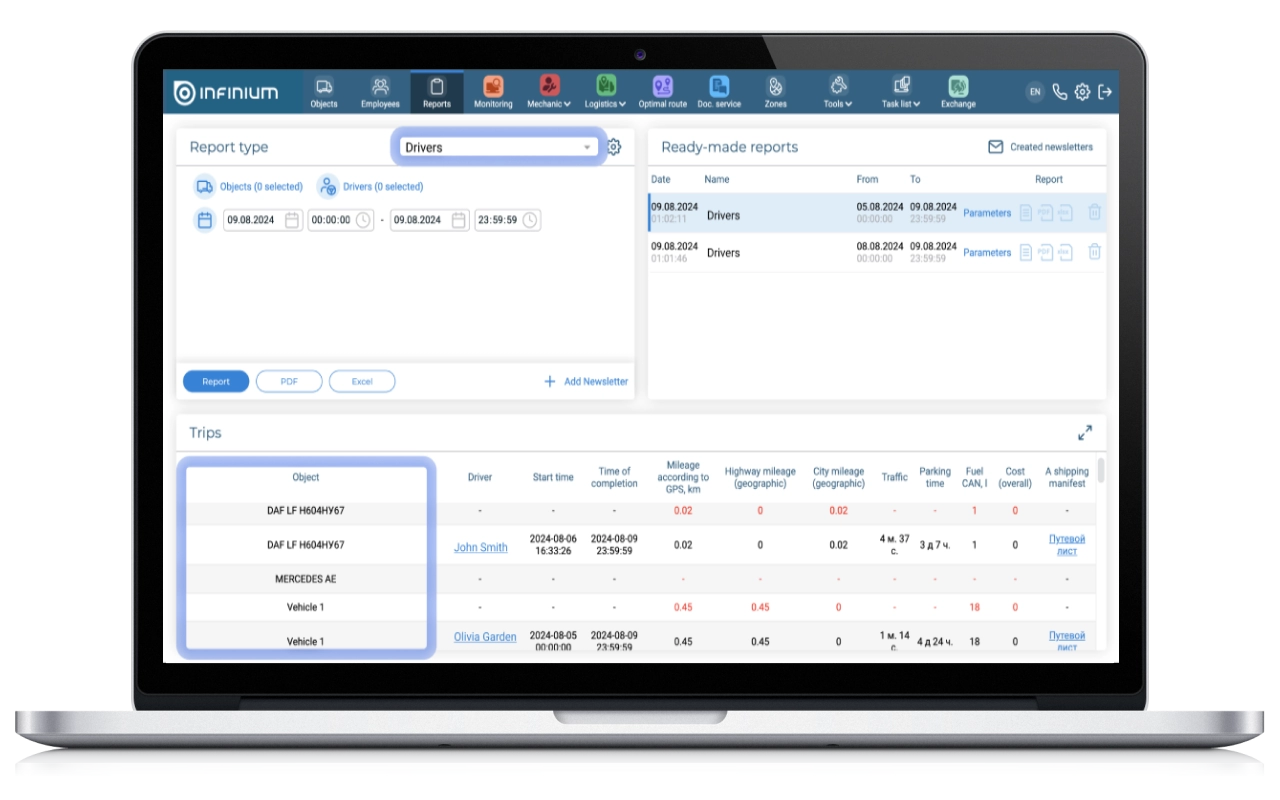
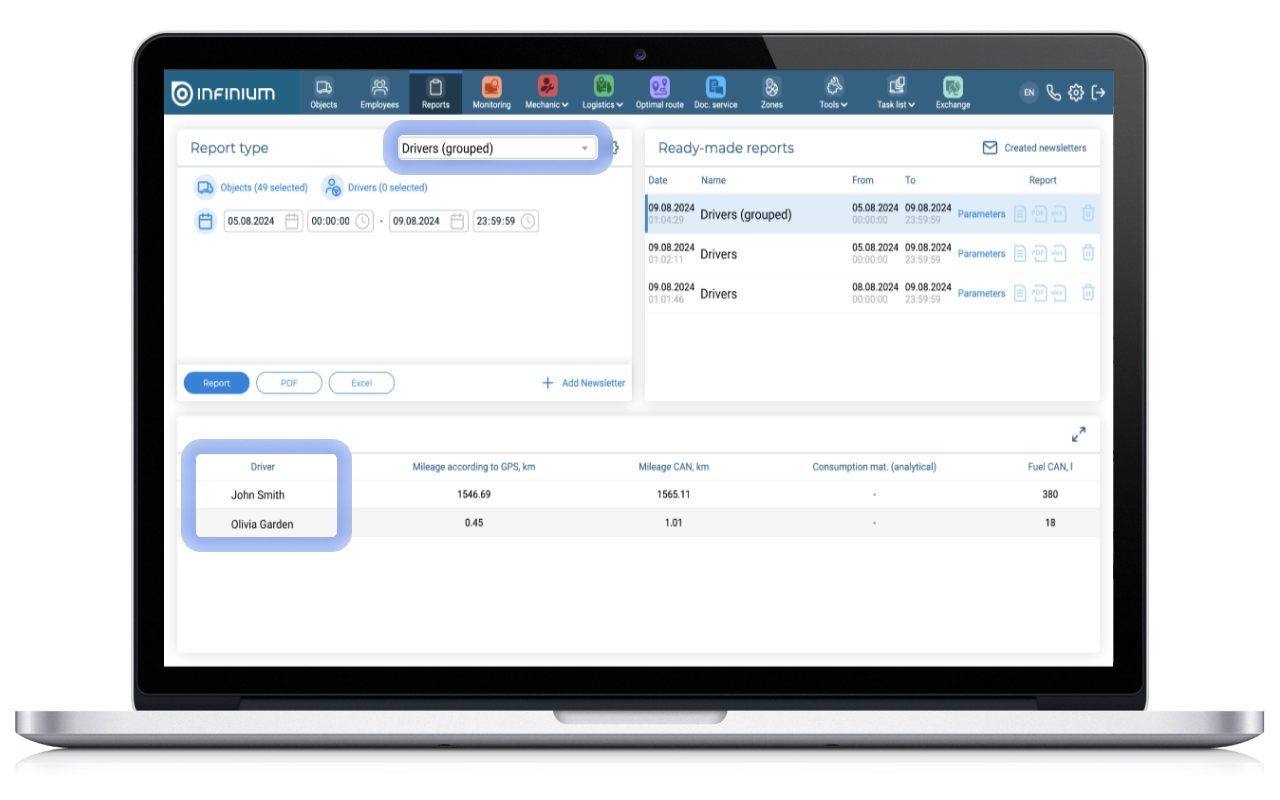
However, many users need to group the information displayed in the report by driver. To satisfy this need, the “Drivers (grouped)” report was created.
This report displays all aggregated fields from the Drivers report. Information is grouped by drivers. In the report options, you can select the units, drivers, and time period to be displayed.
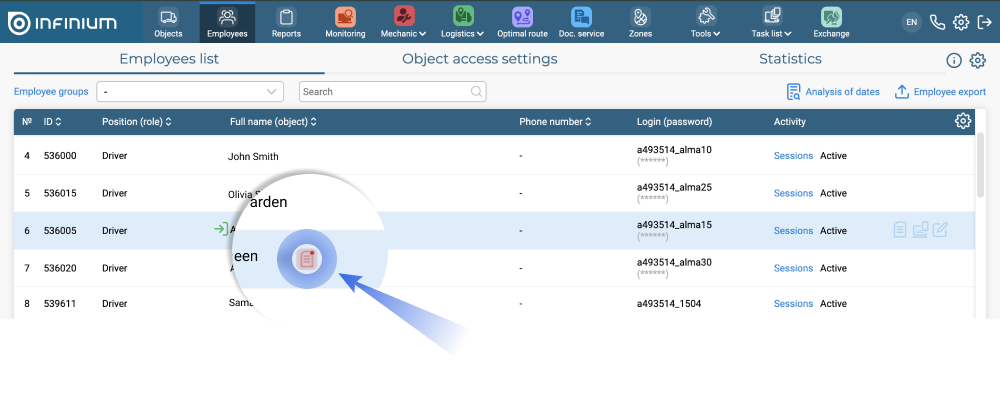
To track the expiration dates of documents, as well as their timely updating, a marker was added to the System, signaling the imminent expiration and delay
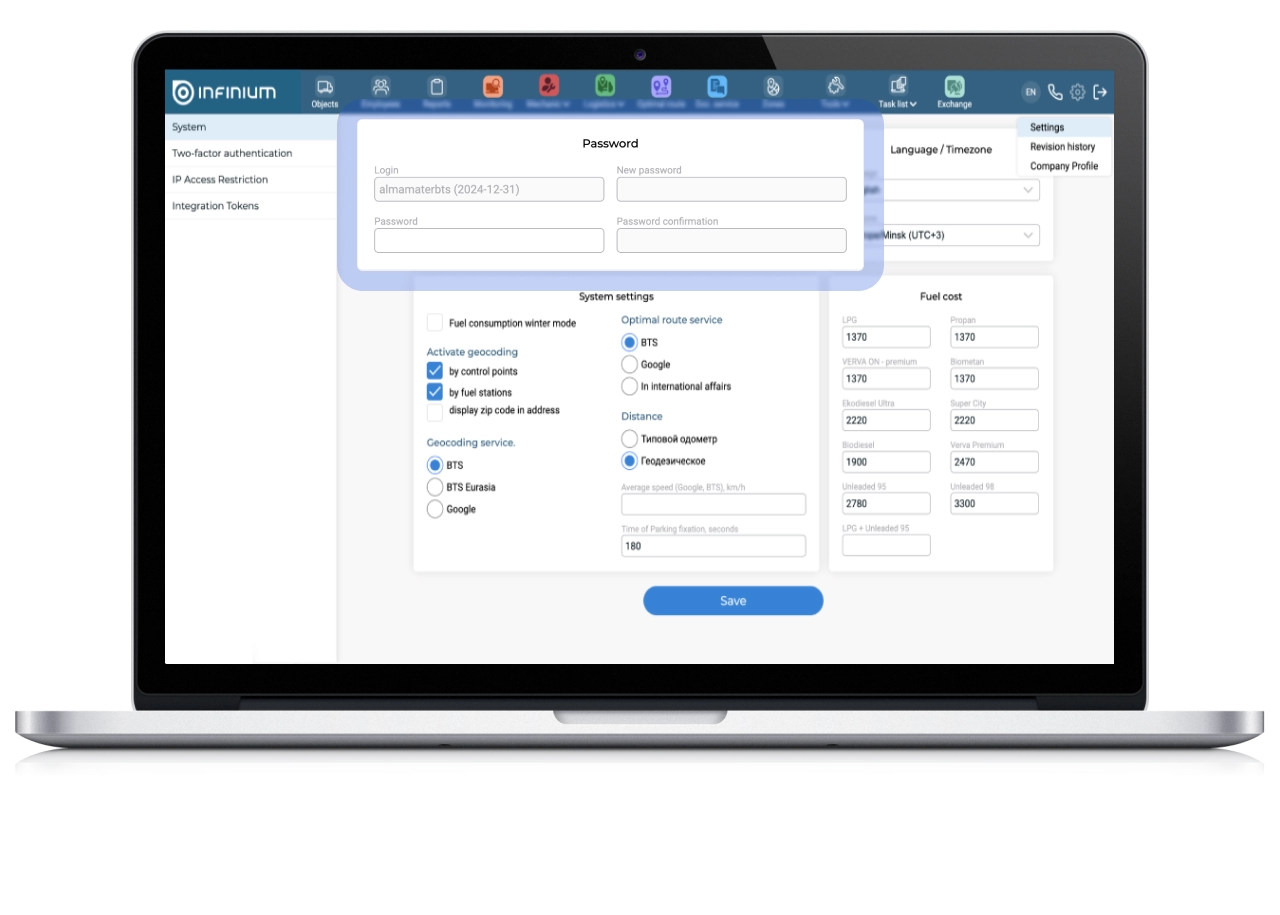
For more efficient functioning and simplification of the interface, the “Settings” section has been redesigned and restructured. This involves changes in the organization and hierarchy of subsections, updating the design and improving navigation.
The changes affected mostly the “General Settings” subsection:
- The block with login and password settings has been moved to the “System” category.
- The two-factor authentication functionality has been moved from General Settings to a separate subsection.
- The “Information” block was removed due to the lack of demand among users for the functionality placed in it.
As a result, the General Settings category has been restructured.
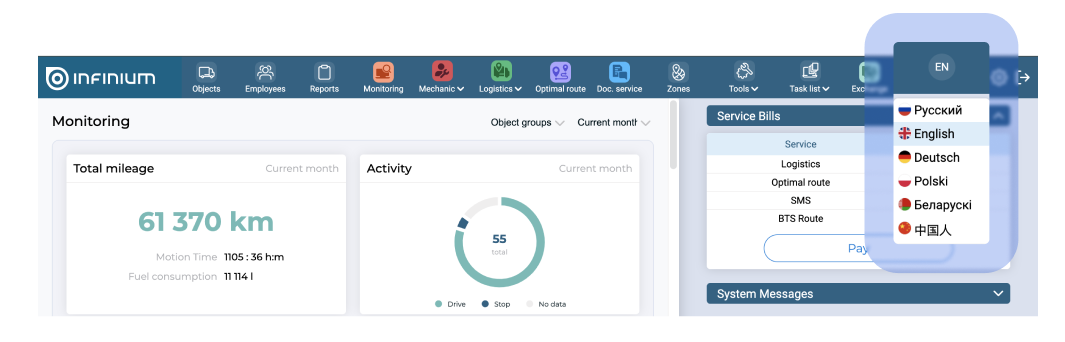
Added a quick interface language change button to the System menu
Changing the System language is one of the basic functions required for correct operation. Previously, the language change button was located in the second-level menu of the System. Because of this, displaying and using this function was unavailable in sections that do not have a second level, for example, in “Monitoring” and “Reports”.
During the menu redesign, the second level was removed, and the language change functionality was moved to the main menu in the form of a drop-down list of options with the names of available languages and flags of the corresponding countries.
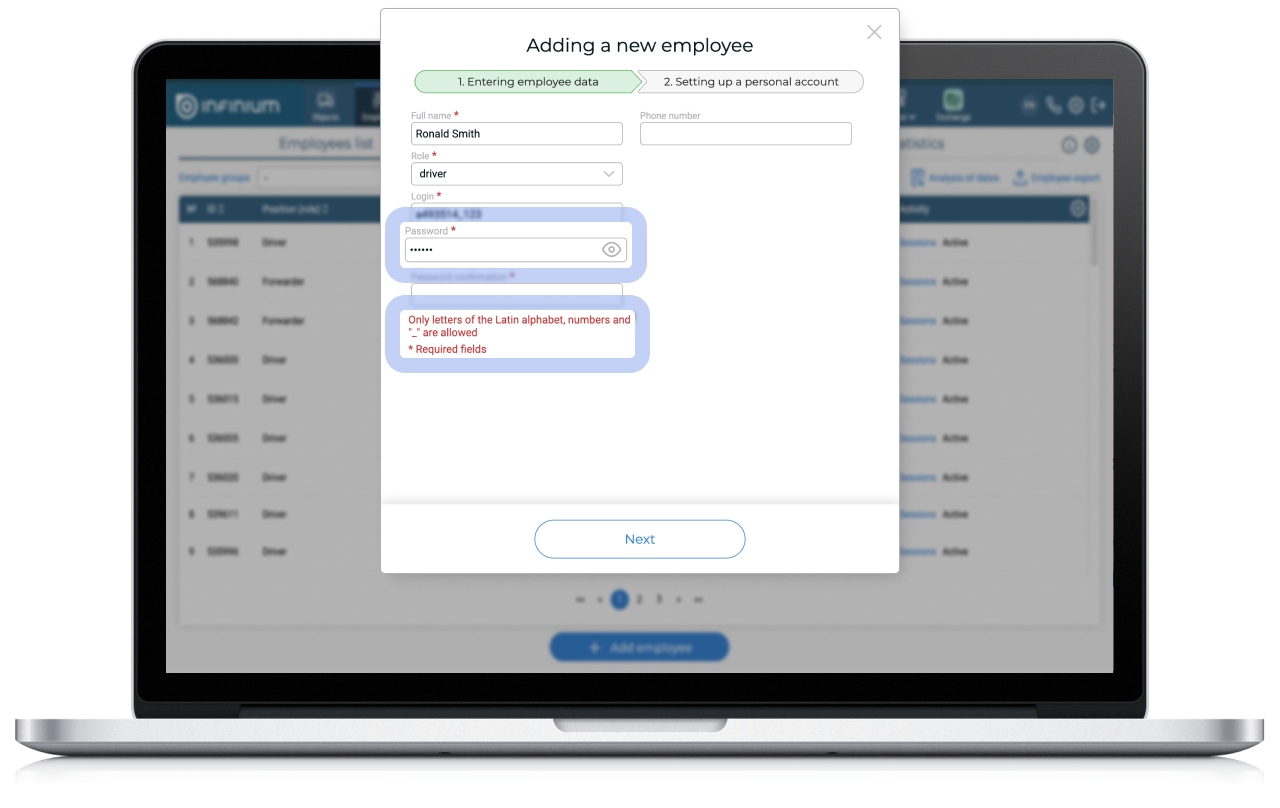
Added a hint about acceptable characters in the “Password when creating an employee” field
In the “Adding a new employee” dialog, a hint about acceptable characters in the password field has appeared so that users do not have difficulties when creating a new employee in the System, and the process itself is transparent for understanding.
A functionality has been created for the history of moving fuel cards between different cars
Previously, information about the fuel card assigned to a vehicle was stored in the vehicle (object) settings in the “Objects” section.
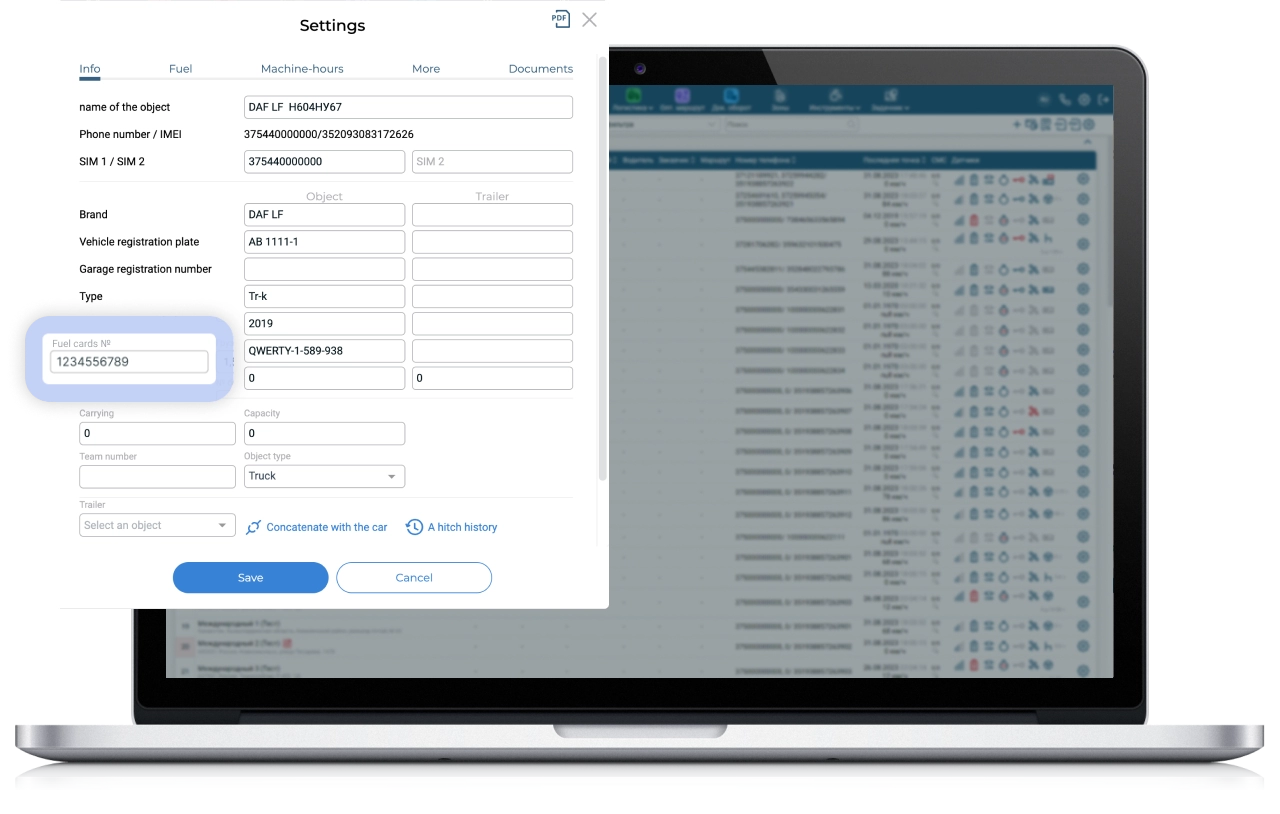
However, often the fuel card is moved between several vehicles, i.e. the fuel card is not permanently assigned to the vehicle, but is assigned only for a certain period of time. And if you are not able to record the vehicle’s TC for a period of time, then the information on refueling from gas station networks in the “Fuel Level” report may be incorrect. To solve this problem, the “Fuel Card Assignment” functionality was created.
Now you can download new data on fuel cards, as well as find the history of their assignments to different cars for different periods of time in the “Assignment of fuel cards” dialog. The “TC No.” field has been removed from the object settings.
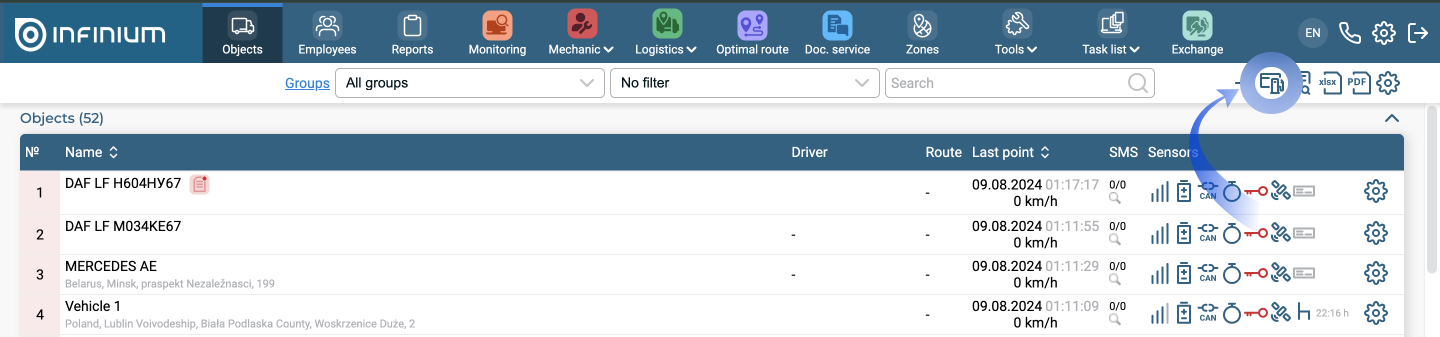
Data stored in appointment history
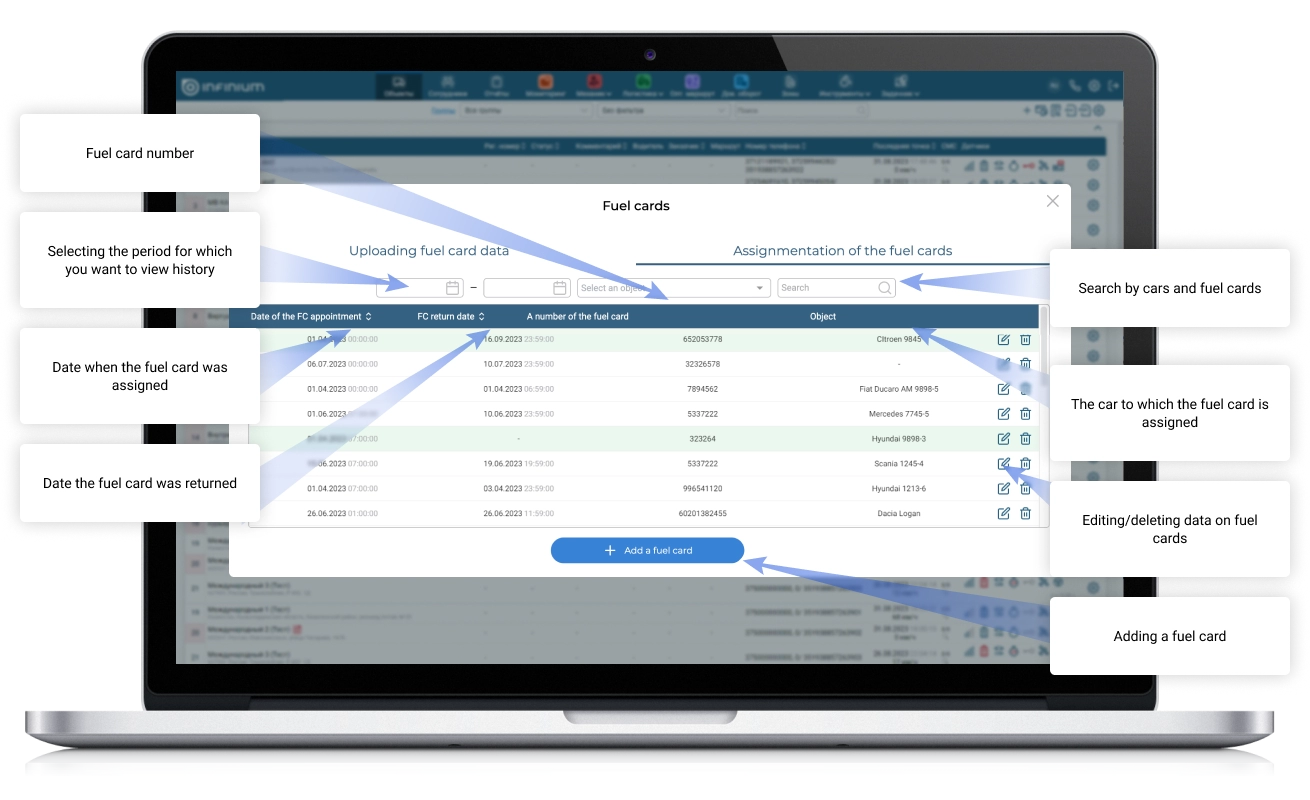
Adding cards
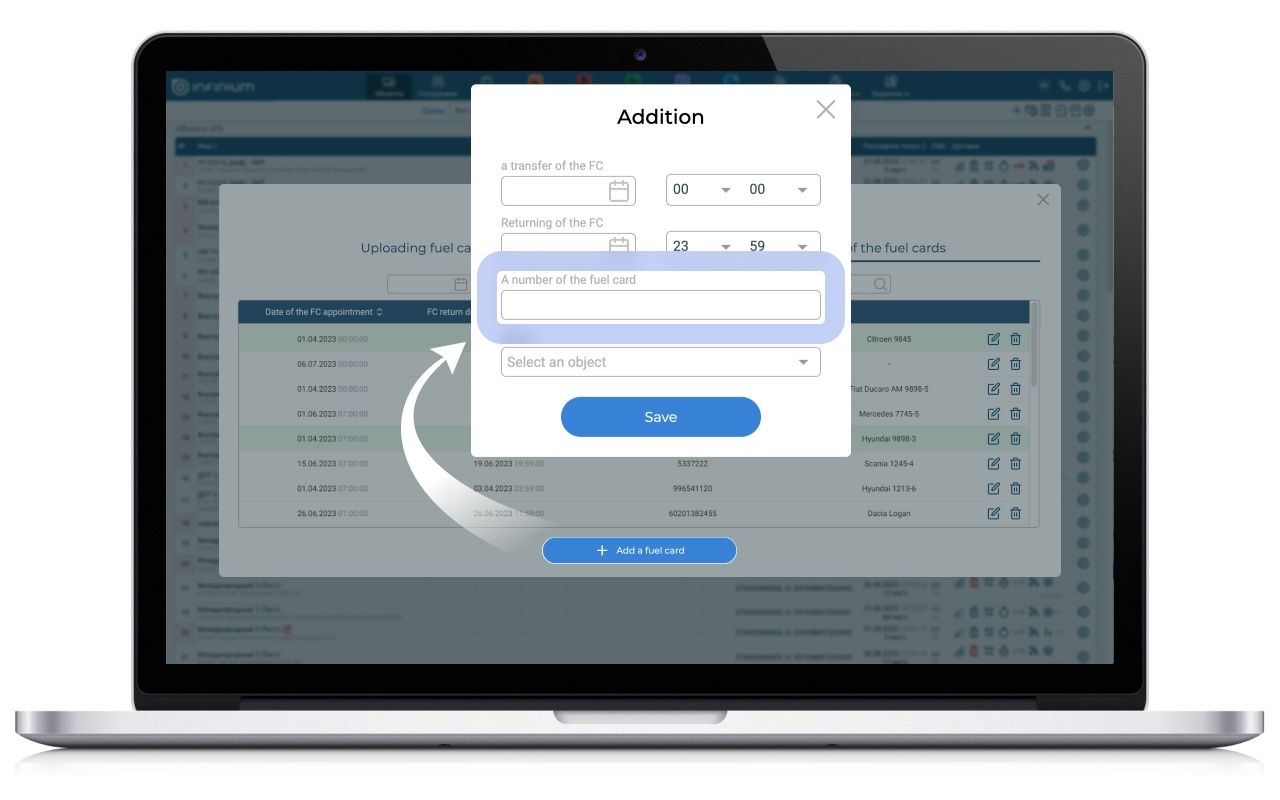
A fuel card can be added using the “+Add fuel card” button. If you leave the “FC return date” field empty, then the fuel card will be considered unlimited, but in this case this card cannot be assigned to another car.
Card transfer
In order to transfer an unlimited card, you must first fill in the “FC return date” field on the previous car.
And in order to transfer the card to another driver, you need to check that the fields “FC assignment date” and “FC return date” do not conflict. For example, you cannot assign a card on July 10th at 10:00 am if it was previously assigned to a vehicle on July 10th from 9:00 am to 11:00 am.
Added a filter for unsent routes to the list of saved routes in the “Optimal route” section
Routes in different statuses in the list of saved routes are highlighted in colors:
- white – routes not sent to the driver
- blue – routes sent but not opened by the driver
- green – routes sent and opened by the driver
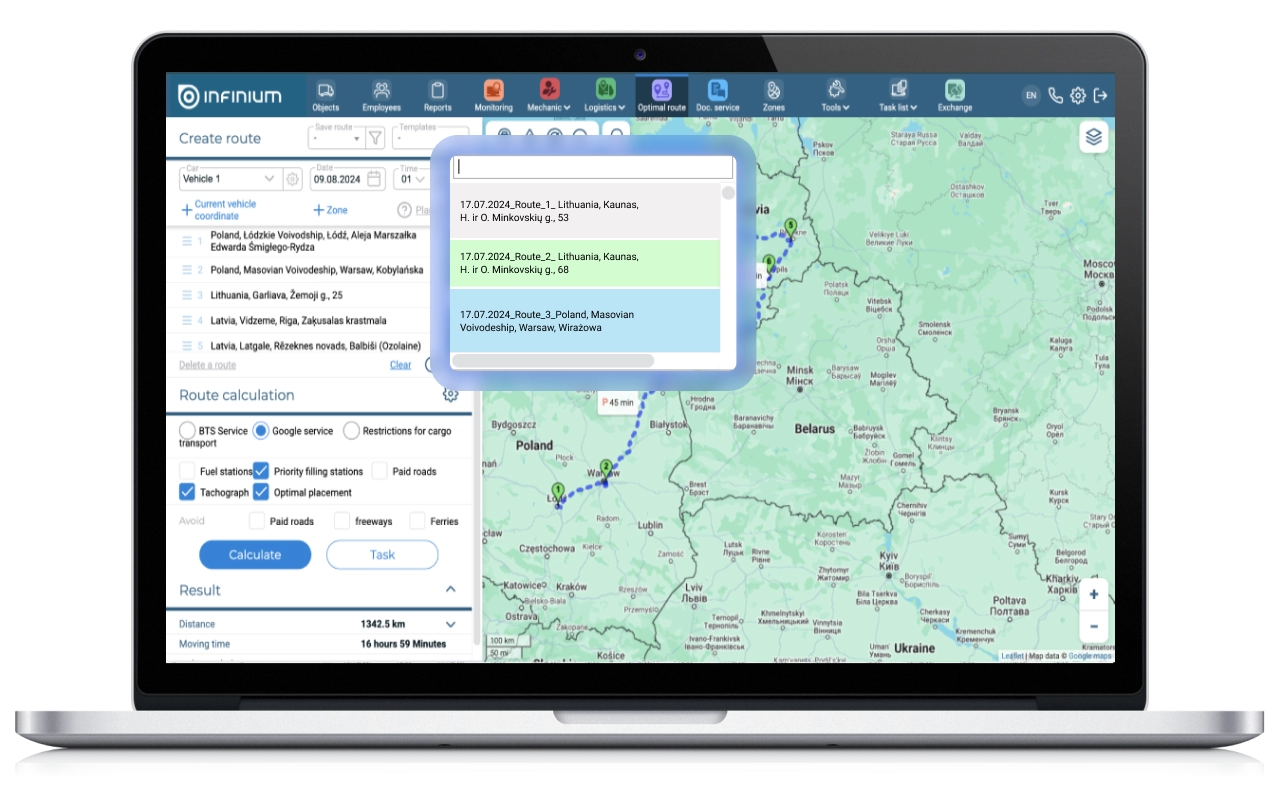
This functionality is convenient for filtering, but requires a manual search for unsent routes from the entire list, which is quite labor-intensive in the case of a large number of saved routes.
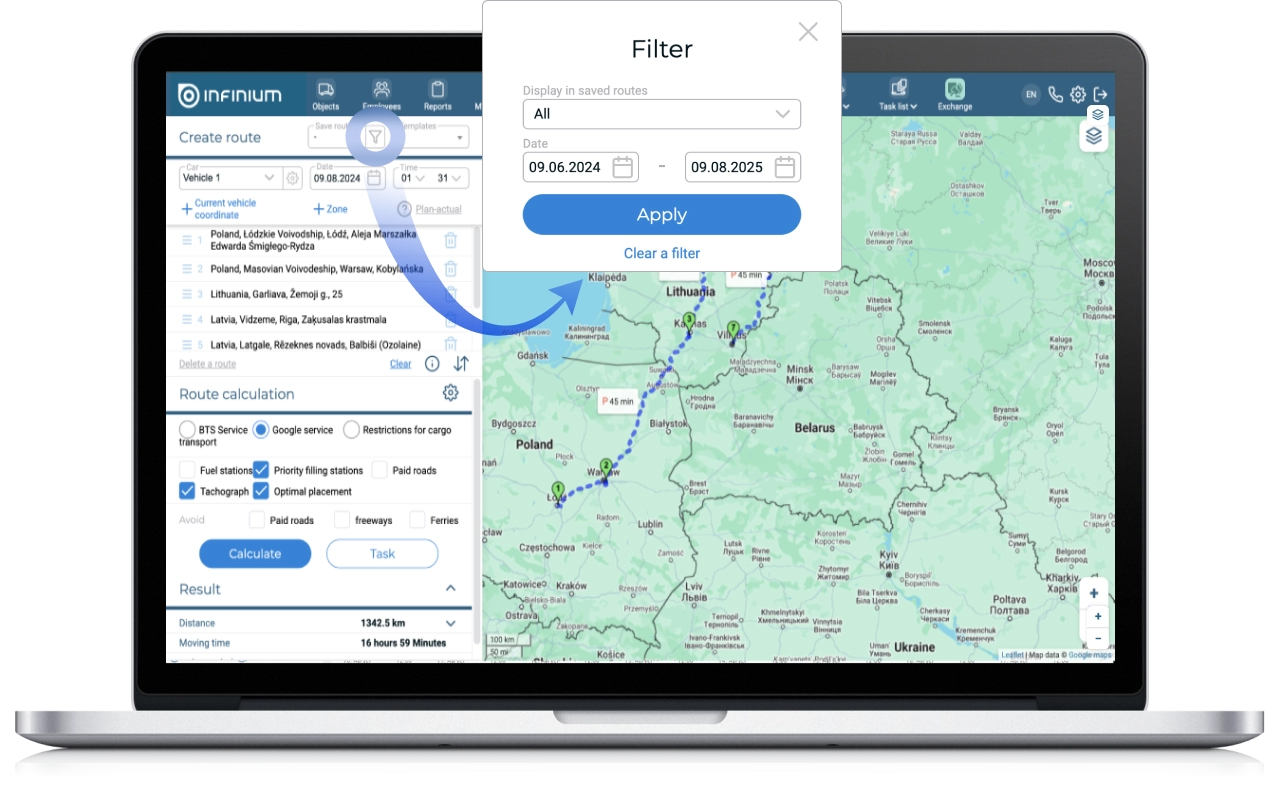
To simplify the search for saved routes, a filter has been added for sent/unsent routes.
Thus, instead of the previously displayed calendar, a filter icon is now displayed. It contains the ability to filter by date, as well as a filter by sent/unsent/all routes. The filter icon is gray by default; if a filter is applied, it turns blue.
Added triggering for the “Auto not accepted” parameter to the “Speed” alert
This modification is relevant for users of the Driver App. Sometimes drivers may drive without completing an inspection in the Driver App, getting the keys from a mechanic or using keyless entry, starting but not finishing the acceptance.
To eliminate such cases and make drivers more responsible in inspecting the car and recording the trip, a trigger for the “Car not accepted” parameter has been added to the “Speed” alert.
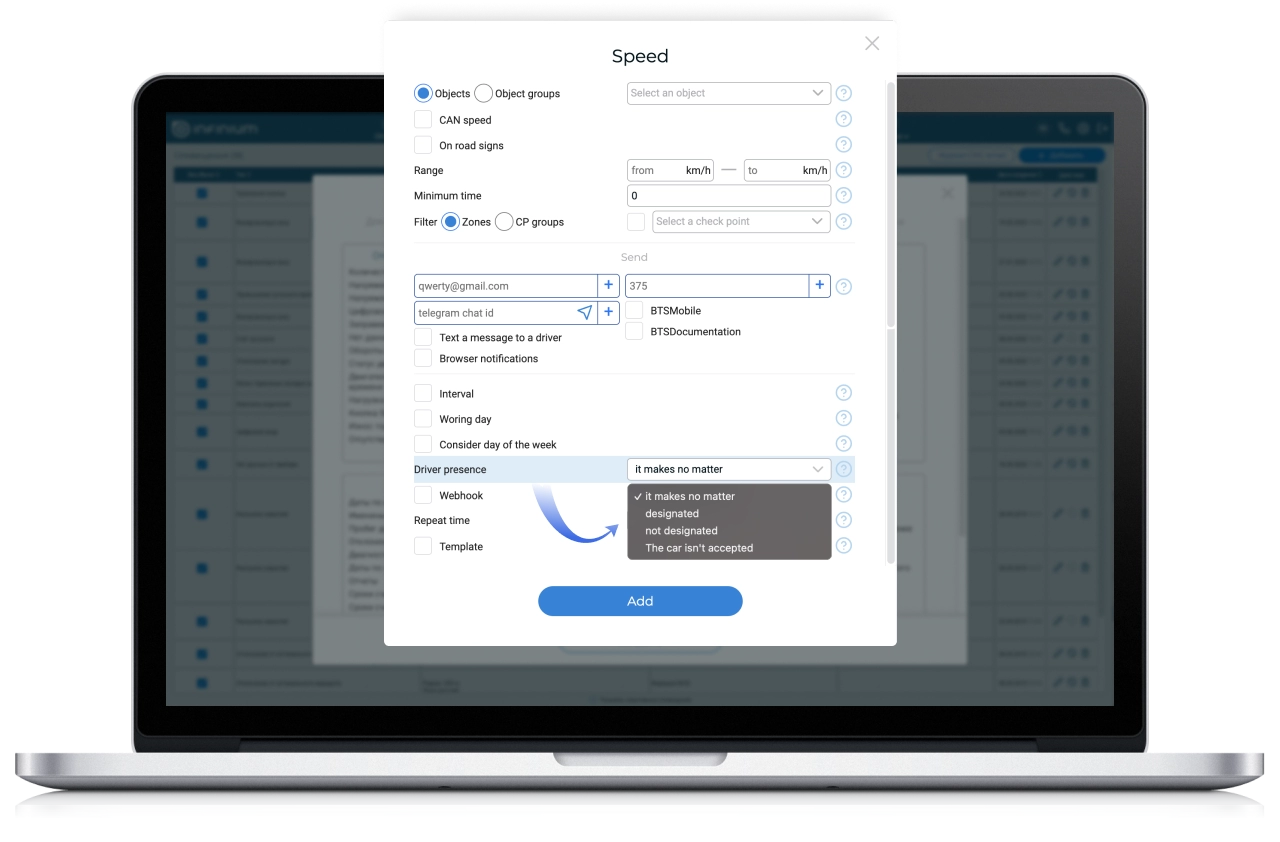
When you select this item, an alert is sent if the speed of the car is higher than that specified in the range in the alert settings, and the car is not accepted in the Driver App by any of the employees.
Reports unused by clients have been removed: Mobileye, RFID, iButton
We draw the attention of users – as a result of the audit and analysis of user activity in the “Reports” section, reports not used by clients were removed: Mobileye, RFID, iButton.